Showing posts with label keyboard shortcuts. Show all posts
Friday, May 25, 2012

Some Common Keyboard shortcuts that works in all browsers


These are some keyboard shortcuts that works on all browsers and works same.


Common Browsers Keyboard shortcuts


Ctrl+1-8 – Switch to the specified tab, counting from the left.
Ctrl+9 – Switch to the last tab.
Ctrl+Tab – Switch to the next tab – in other words, the tab on the right. (Ctrl+Page Up also works, but not in Internet Explorer.)
Ctrl+Shift+Tab – Switch to the previous tab – in other words, the tab on the left. (Ctrl+Page Down also works, but not in Internet Explorer.)
Ctrl+W, Ctrl+F4 – Close the current tab.
Ctrl+Shift+T – Reopen the last closed tab.
Ctrl+T – Open a new tab.
Ctrl+N – Open a new browser window.
Alt+F4 – Close the current window. (Works in all applications.)
Middle Click a Tab – Close the tab.
Ctrl+Left Click, Middle Click – Open a link in a background tab.
Shift+Left Click – Open a link in a new browser window.
Ctrl+Shift+Left Click – Open a link in a foreground tab.
Alt+Left Arrow, Backspace – Back.
Alt+Right Arrow, Shift+Backspace – Forward.
F5 – Reload.
Shift+F5 – Reload and skip the cache, re-downloading the entire website.
Escape – Stop.
Alt+Home – Open homepage.
Ctrl and +, Ctrl+Mousewheel Up – Zoom in.
Ctrl and -, Ctrl+Mousewheel Down — Zoom out.
Ctrl+0 – Default zoom level.
F11 – Full-screen mode.
Space, Page Down – Scroll down a frame.
Page Up – Scroll up a frame.
Home – Top of page.
End – Bottom of page.
Middle Click – Scroll with the mouse.
Ctrl+L, Alt+D, F6 – Focus the address bar so you can begin typing.
Ctrl+Enter – Prefix www. and append .com to the text in the address bar, and then load the website. For xample, type howtogeek into the address bar and press Ctrl+Enter to open www.howtogeek.com.
Alt+Enter – Open the location in the address bar in a new tab.
Search
trl+K, Ctrl+E – Focus the browser’s built-in search box or focus the address bar if the browser doesn’t have  dedicated search box. (Ctrl+K doesn’t work in IE, Ctrl+E does.)
Alt+Enter – Perform a search from the search box in a new tab.
Ctrl+F, F3 – Open the in-page search box to search on the current page.
Ctrl+G, F3 – Find the next match of the searched text on the page.
Ctrl+Shift+G, Shift+F3 – Find the previous match of the searched text on the page.
Ctrl+H – Open the browsing history.
Ctrl+J – Open the download history.
Ctrl+D – Bookmark the current website.
Ctrl+Shift+Del – Open the Clear Browsing History window.
Ctrl+P – Print the current page.
Ctrl+S – Save the current page to your computer.
Ctrl+O – Open a file from your computer.
Ctrl+U – Open the current page’s source code. (Not in IE.)
F12 – Open Developer Tools. (Not in Firefox.)

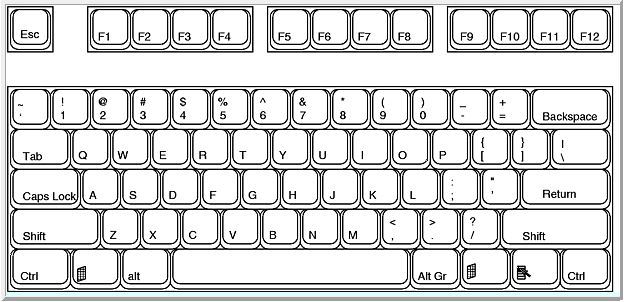
Monday, May 14, 2012

List of Keyboard Shortcuts for Gmail


Gmail is the popular free email service by search giant Google. Its web interface is really easy to use and fast to navigate. But we can make it faster by using keyboard shortcuts.

By Deafult, keyboard shortcuts are off and you need to enable it from the settings. To enable keyboard shortcuts for your Gmail follow these steps:
  1. Click the gear icon, in the upper right, then select Settings.
  2. Choose the option next to "Keyboard shortcuts" to turn them on. You can also enable shortcuts automatically by going to http://mail.google.com/mail/?kbd=1
List of Keyboard Shortcuts for Gmail

Shortcut Key
Definition
Action
c
Compose
Allows you to compose a new message. <Shift> + c allows you to compose a message in a new window.
/
Search
Puts your cursor in the search box.
k
Move to newer conversation
Opens or moves your cursor to a more recent conversation. You can hit <Enter> to expand a conversation.
j
Move to older conversation
Opens or moves your cursor to the next oldest conversation. You can hit <Enter> to expand a conversation.
n
Next message
Moves your cursor to the next message. You can hit <Enter> to expand or collapse a message. (Only applicable in 'Conversation View.')
p
Previous message
Moves your cursor to the previous message. You can hit <Enter> to expand or collapse a message. (Only applicable in 'Conversation View.')
o or <Enter>
Open
Opens your conversation. Also expands or collapses a message if you are in 'Conversation View.'
u
Return to conversation list
Refreshes your page and returns you to the inbox, or list of conversations.
e
Archive
Archive your conversation from any view.
m
Mute
Archives the conversation, and all future messages skip the Inbox unless sent or cc'd directly to you.
x
Select conversation
Automatically checks and selects a conversation so that you can archive, apply a label, or choose an action from the drop-down menu to apply to that conversation.
s
Star a message or conversation
Adds or removes a star to a message or conversation. Stars allow you to give a message or conversation a special status.
+
Mark as important
Helps Gmail learn what's important to you by marking misclassified messages. (Specific to Priority Inbox)
-
Mark as unimportant
Helps Gmail learn what's not important to you by marking misclassified messages. (Specific to Priority Inbox)
!
Report spam
Marks a message as spam and removes it from your conversation list.
r
Reply
Replies to the message sender.<Shift> + r allows you to reply to a message in a new window. (Only applicable in 'Conversation View.')
a
Reply all
Replies to all message recipients.<Shift> +a allows you to reply to all message recipients in a new window. (Only applicable in 'Conversation View.')
f
Forward
Forwards a message. <Shift> + fallows you to forward a message in a new window. (Only applicable in 'Conversation View.')
<Esc>
Escape from input field
Removes the cursor from your current input field.
<Ctrl> + s
Save draft
Saves the current text as a draft when composing a message. Hold the <Ctrl> key while pressing sand make sure your cursor is in one of the text fields -- either the composition pane, or any of the To, CC, BCC, or Subject fields -- when using this shortcut.
#
Delete
Moves the conversation to Trash.
l
Label
Opens the Labels menu to label a conversation.
v
Move to
Moves the conversation from the inbox to a different label, Spam or Trash.
<Shift> + i
Mark as read
Marks your message as 'read' and skip to the next message.
<Shift> + u
Mark as unread
Marks your message as 'unread' so you can go back to it later.
[
Archive and previous
Removes the current view's label from your conversation and moves to the previous one.
]
Archive and next
Removes the current view's label from your conversation and moves to the next one.
z
Undo
Undoes your previous action, if possible (works for actions with an 'undo' link).
<Shift> + n
Update current conversation
Updates your current conversation when there are new messages.
q
Move cursor to chat search
Moves your cursor directly to the chat search box.
y
Remove from Current View*
Automatically removes the message or conversation from your current view.
  • From 'Inbox,' 'y' meansArchive
  • From 'Starred,' 'y' meansUnstar
  • From 'Trash,' 'y' meansMove to inbox
  • From any label, 'y' meansRemove the label
* 'y' has no effect if you're in 'Spam,' 'Sent,' or 'All Mail.'
.
Show more actions
Displays the 'More Actions' drop-down menu.
<Ctrl> + <Down arrow>
Opens options in Chat
  • <Ctrl> + <Down arrow> moves from edit field in your chat window to select the 'Video and more' menu
  • Next, press <Tab> to select the emoticon menu
  • Press <Enter> to open the selected menu
?
Show keyboard shortcuts help
Displays the keyboard shortcuts help menu within any page you're on. (Note: Typing ? will display the help menu even if you don't have keyboard shortcuts enabled)
k
Move up a contact
Moves your cursor up in your contact list
j
Move down a contact
Moves your cursor down in your contact list
o or <Enter>
Open
Opens the contact with the cursor next to it.
u
Return to contact list view
Refreshes your page and returns you to the contact list.
e
Remove from Current Group
Removes selected contacts from the group currently being displayed.
x
Select contact
Checks and selects a contact so that you can change group membership or choose an action from the drop-down menu to apply to the contact.
<Esc>
Escape from input field
Removes the cursor from the current input
#
Delete
Deletes a contact permanently
l
Group membership
Opens the groups button to group contacts
z
Undo
Reverses your previous action, if possible (works for actions with an 'undo' link)
.
Show more actions
Opens the "More actions" drop-down menu.

Combo-keys - Use the following combinations of keys to navigate through Gmail.

Shortcut Key
Definition
Action
<Tab> then <Enter>
Send message
After composing your message, use this combination to send it automatically. (Supported in Internet Explorer and Firefox, on Windows.)
y then o
Archive and next
Archives your conversation and moves to the next one.
g then a
Go to 'All Mail'
Takes you to 'All Mail,' the storage site for all mail you've ever sent or received (and have not deleted).
g then s
Go to 'Starred'
Takes you to all conversations you have starred.
g then c
Go to 'Contacts'
Takes you to your Contacts list.
g then d
Go to 'Drafts'
Takes you to all drafts you have saved.
g then l
Go to 'Label'
Takes you to the search box with the "label:" operator filled in for you.
g then i
Go to 'Inbox'
Returns you to the inbox.
g then t
Go to 'Sent Mail'
Takes you to all mail you've sent.
* then a
Select all
Selects all mail.
* then n
Select none
Deselects all mail.
* then r
Select read
Selects all mail you've read.
* then u
Select unread
Selects all unread mail.
* then s
Select starred
Selects all starred mail.
* then t
Select unstarred
Selects all unstarred mail.


Friday, April 27, 2012

List of Keyboard shortcuts For Google Drive


List of Keyboard shortcuts For Google Drive

Google has just announced its much awaited online cloud storage service. As Google does with all its service, it has also added may keyboard shortcuts in this service too. These keyboard shortcut allow users to navigate quickly and work faster.

List of keyboard shortcuts

j : navigate to and highlight next item
k : navigate to and highlight previous item
x : toggle selection of highlighted item
Shift + a : select all
Shift + n : select none
g then n : go to navigation panel
g then l : go to document list
g then c : go to collections
g then d : go to details pane
o or Enter : open item
s : toggle star
. : share
z : organize
Shift + t : create a new text document
Shift + s : create a new spreadsheet
Shift + p : create a new presentation
Shift + d : create a new drawing
Shift + c : create a new collection
c : display create new menu
u : display upload menu
a : display actions menu
r : display sort menu
v : display view menu
/ : go to search box
d : toggle details pane
? : display keyboard shortcuts

For a full list of Google Drive keyboard shortcuts, press "?", to launch the shortcut display.
Sunday, March 4, 2012

Keyboard Shortcuts for Windows 8 Consumer Preview


Microsoft has launched Windows 8 Consumer Preview 2 days back. It has gained lots of attention and got more than 1 million download in just 24 hours after the release. 


This new windows 8 is totally different from other previous version of windows. It is difficult for most of the users. But tablet and touch users will find it easy. Because it is mainly optimized for touch devices.


As i find that using this with the keyboard is really easy and fast. So you should remember some keyboard shortcuts. It supports all the previous shortcuts used in older version of windows. But there are many new added in this version. See the new keyboard shortcuts added in this version of the windows. And use all older windows shortcuts.


New hotkeys (Shortcuts) added in Windows 8 Consumer Preview
Key combinationFunction
Windows-SpaceSwitch input language and keyboard layout.
Windows-OLock device orientation.
Windows-,Temporarily peek at the desktop.
Windows-VCycle through toasts.
Windows-Shift-VCycle through toasts in reverse order.
Windows-EnterLaunch Narrator.
Windows-PgUpMove the Start Screen or a Metro-style application to the monitor on the left.
Windows-PgDownMove the Start Screen or a Metro-style application to the monitor on the right.
Windows-Shift-.Move the gutter to the left (snap an application).
Windows-.Move the gutter to the right (snap an application).
Windows-COpen the Charms bar.
Windows-IOpen the Settings charm.
Windows-KOpen the Connect charm.
Windows-HOpen the Share charm.
Windows-QOpen the Search pane.
Windows-WOpen the Settings Search app.
Windows-FOpen the File Search app.
Windows-TabCycle through apps.
Windows-Shift-TabCycle through apps in reverse order.
Windows-Ctrl-TabCycle through apps and snap them as they cycle.
Windows-ZOpen the App Bar.
Windows-/Initiate input method editor (IME) reconversion.
Windows-JSwap foreground between the snapped and filled apps.