Showing posts with label facebook tricks. Show all posts
Saturday, October 27, 2012

Restrict Facebook Access Unless You Have Notifications in Chrome


Facebook is now an important part of our life. But, most of the time we waste our important time there just because of Facebook addiction. If you think that Facebook is distracting you from doing your important work, you can take the help of this nice Google Chrome extension called Facebook Nanny.

This extension restrict Facebook but still let you communicate with the world on Facebook. This extension only give you one minute foe each notification you received on Facebook. Otherwise, you will get only 15 seconds to access Facebook. You may still send and receive messages and your profile. In this way, you will be able to chat and post a status.

Visit Google Chrome App store and install Facebook Nanny extension in your browser. Once this extension is installed in your chrome, you will only be available to access Facebook only when you get notification.

If you do not have any notifications, then it will restrict your access by turning the page grey and showing a pop up message.


This way is somewhat better than other ways which tries to completely locks you out of the Facebook. If you have notifications, you are allowed to access Facebook, otherwise do your work.

Add This TO Google Chrome
Monday, October 15, 2012

Irritate By Photo Tags On Facebook, Try This Trick


Facebook, the virtual world where people live more than their real world. It attracts us because we get all our friends at one place. There are so many things which we enjoy but there are few things which hit our privacy. Tagging is also one of them. Anyone one in our friend-list can tag us in any photo. So people use this as an attention grabbing tool. If people want us to like their photos and videos, they will tag us on their photos. 

But, I do not like to be tagged in all photos. If one of my friend has changed his profile pic, i will never wish to be tagged there. And the worst thing is to be tagged in love pics. Ohh God, people are so free to do all these things.

I know most of the Facebook users want to get rid of these photo taggers. Some times, we are forced to remove those people from our profile. But Here is a simple solution which will allow you to control on these tagging  Facebook has a privacy setting which will allow you to approve the tag before showing into your profile.

Thus you will be able to unapprove those irritating tags which you do not want to appear on your profile.

See the video

Friday, August 31, 2012

How to Change Facebook Color Scheme [Chrome]


Few months back, Having a Facebook in different colour was a dream. Spammers also tried many kind of scams by offering pink and green Facebook to earn some money with survey.

But This is now a reality and you can change the defaault color scheme of facebook to have desired one. By default, Facebook has a Blue interface. But you can change this color in Google Chrome with the help of a nice extension.

To change the color of the Facebook theme, install Facebook Colour Changer extension in your Google Chrome browser. After installing this extension, go to Facebook.com and login in your account. You will not see any change in the color scheme and it will show the default color. To change the color click on the colorful icon in the address bar near the bookmark star icon. Click on this icon and you will see a pop up box with two boxes. Initially they were color pickers but latest version of Google Chrome removed the support so you will not find color pickers. Select the new color and enter the hash code of colors with # symbol at the front and see the color changing in your Facebook page. This new selected color scheme will be displayed in all Facebook profiles and pages. Use both color boxes and select the desired Facebook color scheme.

To get back the default Facebook color scheme, click on Reset to defaults link at the bottom of color picker pop up box. 

Add Facebook Colour Changer in Google Chrome

If you are Facing any kind of issue with this extension, uninstall the extension.
Thursday, July 26, 2012

Cool Facebook Chat with Facebook Chat Text Generator


In this blog, i have already posted various Facebook chat tips and smileys codes. If you are new here, you can browse it from the link below.


UTF codes for Facebook Chat
Cool Emoticons and Images For Chat
List Of Facebook Emoticons


Today, i am posting a nice Facebook chat tips which allow users to write cool, box and bold texts on chat. See the snap
For this, you will have to write following codes in chat
Now the problem arises here. How to learn all these chat codes? 

Solution: You do not need to learn these chat codes. Simply you will have to use this Facebook Chat Text Generator tool.


Go to the tool and write the text for which you want to generate the text. It will automatically generate the preview and chat code below. See the snap

When you have completed writing the text, copy the code generated and paste it into the chat box. You will see the text appeared in the chat.
Friday, July 13, 2012

How to Disable Close Friends Notifications On Facebook


As you have seen, Facebook has options to create lists of friends. This helps to manage friends and news feed. In friend lists, Facebook has a list called "Close Friends" which comes by default. It is a special kind of list and Facebook gives importance to people added in this list. If you have added someone to Close friend list, you will get notification extra notifications about them. You will be notify when he has updated status, shared something.
Facebook has done this to keep you closer to your close friends. Some people also complaint that friends added in their close friends list are not their close friends and they are added by Facebook randomly. If you also think same, you can simply remove those friend from the list.
Some people thinks that they do not need these kind of special notifications and want to turn off this new feature. For those, I am writing an easy way to turn off close friends notification onn Facebook.

Follow these steps to disable Close Friends Notification

Login to your Facebook account and search for “Friends” in the left side bar. Now click on "Close Friends" list and go to the close friends list. Here, You will see news feeds only from the people added in your Close Friends list.

On this page, find Notification at the top right of the page. Click on this and then select Off.
Now you will not receive extra notification from Special Friends page.

If you do not want to Turn off these special notifications, but want to get only some special updates such as see only new photos, status updates or anything you wish. You can do this from Manage List option. It can be found at the top right of the page.

Click on manage list, and select choose update type. Then deselect all those update types for which you do not want to receive notifications.
You can also easily manage friends in the list. Add or remove friends in the list to personalize your close friends list.
Thursday, June 28, 2012

How to Forward a Message On Facebook


We all know how to forward emails to other friends, but very less people know that we can also forward messages on Facebook. Suppose someone sent you a message on Facebook and you want to it to send few of your friends, you can forward it to all those friends. If you already know how to do it, you can start reading and find some other interesting post on this blog. If you do not know how to forward message on Facebook, you can follow these steps:

  • First of all, Login to your Facebook account and go to Messages.
  • Click on a Conversation to see all messages of that conversation.
  • Now click on Action and then Forward...
  • Now select all those messages which you want to forward. Simply click on checkbox just before the message. You can select a single message or multiple messages. Then click on Forward button above all messages.
  • Now you will see a dialog
  • g box with messages you have selected. Here put your message and enter all the friends..
  • Now click on Send.


Comment below if you know this kind of useful trick :)
Tuesday, June 26, 2012

Facebook Changes Your Contact Email address, Change it back Now


Facebook has done one more change which is being hated by facebook users. It has quietly changed the contact email of all users to their Facebook email address. Facebook has assigned this email address to all users few months back. This email address is similar to the username of Facebook users which is used in the vanity URL.
Now it shows users Facebook email address in place of gmail, yahoo or other email address in the contact info of user's timeline. I have also noticed the change in my profile where it is showing deepanker.verma@facebook.com at the place of deepanker70@gmail.com which is my defalut contact address.


This change was pointed out by a blogger last weekend. But there is no official statement from facebook about these changes on contect info. If you are also one of those users who hate this new change and want to show your email back. you can follow these simple steps to reset your timeline profile.


Follow these steps:


Login to your Facebook account and go to your Facebook profile.
Now click on your infor and go to info page.
Scroll down the page till you find contact info and click on Edit link in front of contact info.
Now in email address section, you will see all your email address listed.. click on small circle in front of the hidden email addresses which you want to show on timeline.


Now change is to "Shown On Timeline" from "Hidden from Timeline."
Now Your Gmail or other email address will also be there on your timeline.

Sunday, June 24, 2012

Facebook Now Allows Comment Editing


Now Facebook has given a relief to those who generally made mistakes while typing long comments. If you have posted something wrong in the comment, you can now edit your comment. Before this, users could only delete comment or edit comment only within few seconds after posting.


After editing a comment, Facebook will also add a note under it which shows that the comment was edited. Facebook also adds the edit history so that other users would not get confused. Anyone who can see your comment can see this and click on the Edited link to see what was changed.


To edit the comment, go to the post and then take mouse over your comment.You will see pencil icon at right cornor of comment. Click on it and then click on Edit. Now you can edit the comment.
After editing the comment, you will see a link edited below the comment. you can view your previous edits by clicking on the Edited link beneath your comment.


This is a nice feature which allows users to correct their mistakes. But this feature is not available on mobile platforms.
Thursday, June 21, 2012

How to Leave Unwanted Facebook Groups From Home Page


Facebook group is a nice feature which allow users to share links and files only with group members. But there is one thing which anyone likes. Any user can add any other user to a group. So most of the users are added into unwanted groups. If a user posts something in the group, all other group member receive notification. Most of times, these notifications are irritating. Few days back i wrote how to turn off these notification from notification bar.


In this post, i will show you how to leave a group directly from the home page. You do not need to go into the group page. You can also leave multiple group in fast way. After leaving a group, you will no longer get group notifications or see group stories in your news feed.


Follow these steps:

  • Login to your Facebook account.
  • Find Groups section at the left side of the home page.
  • Take your mouse over the group name and you will see a pencil icon at the left side of the name.
  • Click on the pencil icon and see the pop up menu.
  • Now click on Leave Group.
  • Then click on Leave Group again in the pop up box.
That's all and you have left the group.
Sunday, June 10, 2012

How to Quickly Delete Multiple Facebook Messages in Chrome


In Facebook, option to delete a message is not given at the front. It has added a link to send it to archive. So most of the users send the message to archive and thinks that they have deleted the message. In one of my older post, i had written how to delete a Facebook message permanently. In this post, i am writing about a nice chrome extension which allows users to delete multiple Facebook message without opening.


First of all, install Facebook Fast Delete Extension in Google Chrome. After installation, login to your Facebook account ad go to the messages. You will see a new red x added at the end of each message and a delete all button above all message.


To delete a message click on small Red X next to messag. To delete all messgaes, click on delete all button.


One thing i noticed that the extension does not show a confirmation box before deleting the message. This is required to prevent accidental deletion.


Add this to Google Chrome

Bypass Facebook Social Reader App Install To Read Articles


Few months back, Facebook had added support for applications. After that many news and article website launched their apps which allow users to read stories direct from Facebook. Facebook also shows what our friends read in our news feeds. When we click on the link given in new feeds, it redirect us to a page which asks us to install social reader app and request to access our personal information. 


If you want to read articles without authorizing a third-party application to access your basic information, Unsocialize is made for you. It is available as extension for Google Chrome browser and as an add-on for Firefox web browser. 


After installtion, it adds an Unsocialize option to the right-click context menu. It allows users to open links ini new tabs without going to the app install request page.


When we click on a social reader links on Facebook, it redirects us to a app install page which asks for permission to access our personal information. 


After installing Unsocialize, we can open any social reader link in new tab with the right click context menu. Link will open in new tab without taking you to app install page.


install in Google Chrome
Install it on Firefox
Thursday, June 7, 2012

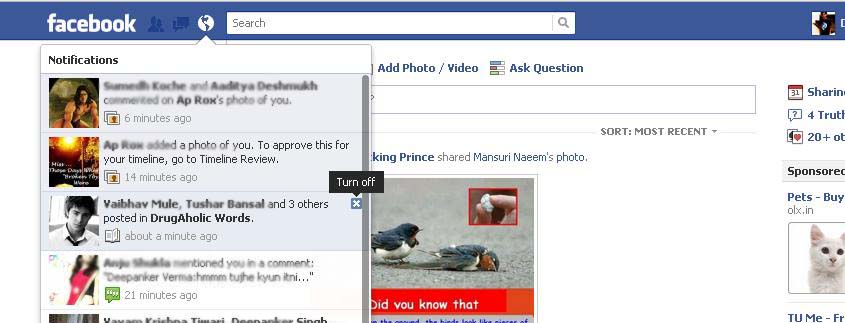
How to Control Facebook Notifications Direct From Notification Bar


Facebook is the most popular social networking website. Best part of this website is its notification feature which keeps use updated with latest updates. We are always interested in notification related to us or our friends. But we do not care for the notifications of groups. Anyone can add us on groups and then we have to face annoying notifications from those groups.

Facebook has also given an option to turn off the notification from the groups. But most of the times we are too lazy to go on the group page and turn off the notifications. To make this easy, Facebook has now updated an easy way to control these notifications direct from the notification bar.

Follow these steps:
  • Click on notification button and then take mouse over to the annoying notification.
  • You will see a x at the top right corner of the notification. Click on it.
  • Now it will ask to turn off notification from that group.
  • Click on Turn Off button.


After this, you will never receive notification from that group. This is really an easy way to turn off the notifications.

To turn on notification again, you will have to go to the group page. To turn on notifications follow these steps:
  • Go to the group page.
  • Click on Notifications.
  • Click on On.

Friday, June 1, 2012

Block Facebook On Your Computer With FB Limiter


There are various ways to block a website on your system. Those who are regular reader of this blog know all those easy ways. In this post i am going to show you how you can block Facebook in the system with the help of a tool.


FB Limiter is a windows tool which can be used to block Facebook and YouTube on a computer. This software is available in free and paid version. Free version of the tool only allow users to block Facebook and YouTube on the system. While paid version also allow users to block for some specific interval of time. 


So paid users can restrict Facebook access on the system for some specific time period only.


Interesting part of this tool is "Total Lock Feature." This feature allows users to block Facebook and YouTube for some specific time period. But you will not be able to unblock websites in any case. You only be able to access Facebook after that time period. You can use this feature in examination period when you strictly do not want to use Facebook.


There is one advantage of using this tool. This is a password protected tool and requires authentication before unblock Facebook. So, other users will not be able to unblock website even if they know that you are blocking websites with the help of FB Limiter.


This software is compatible with windows xp service pack 2 and later.


Download It from Here
Sunday, May 13, 2012

Facebook is Testing Featured Post Feature


Facebook is testing a new feature in New Zealand that allow users to highlight their updates on Facebook. But this new feature is not available for free. Users will have to pay $2 for each post they want to highlight on the Facebook. This post will shown in the yellow background. For payment, Facebook accepts payments from major credit card providers and PayPal.


When it was first appear on the Facebook, user thought it as spam. After that a Facebook spokesperson confirmed that this is new testing feature.


“We’re constantly testing new features across the site. This particular test is simply to gauge people’s interest in this method of sharing with their friends,” Facebook spokeswoman Mia Garlick said.


This is the first time when Facebook has started to earn money by the posting of users. And we can expect a good earning for Facebook after this feature as it allows users to promote their posts. And we know users can do anything to get more likes and comments on Facebook.
Sunday, May 6, 2012

UTF Codes For Facebook Chat and Status


These are some UTF-8 codes which you can use in Facebook chat and status updates for various purpose.
¢ – cent
£ – pound
¤ – currency
¥ – yen
€ – euro sign
§ – section
© – copyright
® – registered trademark
™ – trademark
° – degree – e.g. 45°
¹ – superscript 1
² – superscript 2
³ – superscript 3
· – middle dot
¸ – spacing cedilla
¼ – fraction 1/4
½ – fraction 1/2
¾ – fraction 3/4
¿ – inverted question mark
× – multiplication
÷ – division
• – bullet = black small circle
◊ – lozenge
℠ – Service Mark
✓ – check mark
✔ – heavy check mark
✕ – multiplication sign
✖ – heavy multiplication sign
✗ – ballot
✘ – heavy ballot
✝ – Latin Roman Cross
✞ – Latin Cross 3D shadow
✟ – Latin Cross outline
✠ – Maltese Cross
✡ – Star of David
❛ – quotation mark single turned comma
❜ – quotation mark single comma
❝ – quotation mark double turned comma
❞ – quotation mark double comma
℃ – Celsius
℅ – care of
℉ – Farenheit
№ – numero symbol – number sign
℗ – Sound Recording Copyright
℞ – Prescription Take pharmaceutical symbol
Ω – Ohm
℧ – Inverted Ohm
☀ – sunshine – sun
☁ – cloudy – cloud – dark cloud
☂ – raining – rain – umbrella
☃ – snow – snowman
☄ – shooting star
★ – star solid
☆ – star outline
☇ – lightning
☈ – thunderstorm
☉ – sun
☊ – ascending node
☋ – descending node
☌ – conjunction
☍ – opposition
☎ – phone
☏ – phone symbol outline
☐ – check box
☑ – check box check mark
☒ – ballot box with X
☓ – St. Andrew’s Cross
♔ – White King
♕ – White Queen
♖ – White Rook
♗ – White Bishop
♘ – White Knight
♙ – White Pawn
♚ – Black King
♛ – Black Queen
♜ – Black Rook
♝ – Black Bishop
♞ – Black Knight
♟ – Black Pawn

☚ – left-pointing index finger
☛ – right-pointing index finger
☜ – left-pointing index finger
☝ – upwards pointing index finger
☞ – right pointing index finger
☟ – downwards pointing index finger
☠ – skull & crossbones
☡ – caution sign
☢ – radioactive sign
☣ – biohazard sign
☮ – peace sign
☯ – yin & yang
☹ – frowning face
☺ – smiley face
☻ – black smiley face
☽ – waxing crescent moon
☾ – waning crescent moon
♈ – Aries
♉ – Taurus
♊ – Gemini
♋ – Cancer
♌ – Leo
♍ – Virgo
♎ – Libra
♏ – Scorpio
♐ – Sagitarius
♑ – Capricorn
♒ – Aquarius
♓ – Pisces
♠ – black spade suit
♢ – red diamond suit
♣ – black club suit = shamrock
♤ – red spade suit
♥ – black heart suit = valentine
♦ – black diamond suit
♧ – red club suit
♨ – hot springs
♩ – musical quarter note
♪ – musical eighth note
♫ – musical single bar note
♬ – musical double bar note
♭ – flat note
♮ – natural note
♯ – sharp note
✁ – cut above
✂ – cut here
✃ – cut below
✄ – scissors
✆ – public pay phone
✇ – film reel – tape spool
✈ – airport jet airplane
✉ – envelope mail email
✌ – victory sign
✍ – signature – sign here
✎ – pencil diagonal down
✏ – pencil
✐ – pencil diagonal up
✈♬☑ ☎ ☒ ☻ ♤ ☤☹♀ ✩✉ ✇♺✖♨ ❦☁ ✌♛ ❁☪ ☂✏♝ ❀ ☭☃☛♞ ✿ ☚ ♘✾ ☯☾☝♖✽ ✝☄☟♟✺ ☥✂ ✍♕✵ ☮☠ ❤☆ ★ ♫ ✔ ► Ω ッ ● ♣ ♪ ☼ ◄ ❥ ♂♀ ♪◘♠☻♣ ♦☺○ ¿ ❤ ☆ ★

Unofficial Cool Emoticons and Images for Facebook Chat


We all use Facebook and its chat to connect with our friends. Emoticons and smileys are the best part of the chat which we use to express our expressions. Facebook also has some official smileys which are really nice.


In the first post of this blog, i have covered all the official emoticons code which are available in Facebook. But this post is about some unofficial emoticons which are better than the official emoticons.


Read: How to post animated GIF images on your Facebook Wall


Use of these emoticons is really simple. See the emoticon code given in the image below and write the code in Facebook chat. After that press enter and see that code is now converted into a emoticon. 


NOTE: Use code with 2 brackets both side as given in the image.


 For example if you want to add laughing smiley to Facebook chat just copy [[f9.laugh]] and paste and then press enter.

These were the expression emoticons. You can also enjoy Facebook chat with some cool animates images which you can use in chat. Use these code and see the effects in chat.

[[126213110723975]] – Hello Ketty
[[126230880722198]] – Green Worm
[[126229327389020]] – Rose Red
[[127868980561350]] – Heart beat
[[126216480723638]] – butterfly blue
[[126132024065417]] – Heart rotate
[[126278187384134]] – O YEah Hippo
[[126540207361797]] – Smiley in love
[[398699314236]]      - Teddy
[[110780922298250]] – Heart on Fire
[[127878643893717]] – hand Clap
[[398570519236]]      - mickey at Sleep
[[394930959230]]      - Smileys Zzzz
[[126398717372810]] – Converse
[[126217194056900]] – I love you


You can also use some animated English alphabets with the codes.


[[107015582669715]] = A
[[116067591741123]] = B
[[115602405121532]] = C
[[112542438763744]] = D
[[115430438474268]] = E
[[109225112442557]] = F
[[111532845537326]] = G
[[111356865552629]] = H
[[109294689102123]] = I
[[126362660720793]] = J
[[116651741681944]] = K
[[115807951764667]] = L
[[106596672714242]] = M
[[108634132504932]] = N
[[116564658357124]] = O
[[111669128857397]] = P
[[107061805996548]] = Q
[[106699962703083]] = R
[[115927268419031]] = S
[[112669162092780]] = T
[[108983579135532]] = U
[[107023745999320]] = V
[[106678406038354]] = W
[[116740548336581]] = X
[[112416755444217]] = y
[[165724910215]]      = Z


NOTE: If you are getting a image with ? in place of the original image. it means there is some problem in loading image from the actual source or image do not exists. 
Monday, April 30, 2012

Add List Of Emoticons To Facebook Chat On Chrome


Facebook supports various type of emoticons to express our feelings on chat. But we need to remember all the emoticons codes to use them on Facebook chats. Although some codes are same as they are used in other chat applications. So they are easy to remember. But it is really hard to remember all chat codes.

Think if you could have a box near the chat window which shows all the smilies Facebook supports with chat codes. This can be done with an Chrome Extension known as MyEmoticons. This extension adds a box with chat smilies and codes near the chat and allow you to insert smilies on the chat quickly. Now you do not need to learn and remember these codes.

Just after the installation, this Google Chrome extension adds a separate panel next to the chat bar at right side. Each time you want to see the smilies' code, just open this panel by clicking on it. This panel shows 27 emoticons with their short codes. Enter the short code and press enter. You will see a cute emoticon in the chat window.

This nice extension is light weight and free to use. Install in your Google Chrome web browser from the link below.


Thursday, April 26, 2012

Facebook Offering Free Antivirus From Five Security Giants


Facebook is the biggest social networking website on which users spend more time than their actual life. Recently, Facebook claimed to have more than 901 million registered users on the website. This is the reason why it is the best place for scammers. There are various type of clickjacking scams which we see daily on Facebook. It is true that Facebook is trying to make the social networking platform secure. But most of the time it was failed to protect users.

Facebook had also partnered with Web Of Trust to know about malicious URLs and block those links on Facebook. This improved some security but scammers also made a new way to break this.

Now Company has come with a new strong way with the partnership of five major security software vendors, Microsoft, McAfee, TrendMicro, Sophos and Symantec. Now the malicious ULR list will contains all malicious links identified by these security software vendors.

Along with this URL blocking, Facebook is also offering antivirus softwares. As we know that an infected computer may also spread some scams on Facebook profile open in a browser. So Facebook wants users to be safe. Look at the new Facebook Antivirus Marketplace. The Facebook Antivirus Marketplace offers people to download six-month licenses to full versions of antivirus software at no charge. This is the result of the new partnership of Facebook with these security giants.
Saturday, April 21, 2012

Download your Facebook albums with Photograbber


Facebook the largest social network is a virtual world where people spend more time than real world. We all use it to share our daily experience, photos, videos and everything we think. We can easily create albums and create photos with friends. 
Sometimes we need to download all the photos in our system. Although, Facebook has given an option to download all Facebook data including status and comments. But what if we only want to download photos. There are some nice tools which can help. PhotoGrabber is also a nice tool to download photos from Facebook.


Follow these steps:

  • Download PhotoGrabber Desktop client. It is available for windows or MAC.
  • Signin with your Facebook account and allow this application to access account.
  • Now you will see your album listed on the application.
  • select the album you want to download and hit the download begin button.
  • Downloading will start within few seconds.


Wednesday, April 18, 2012

How to post animated GIF images on your Facebook Wall


By Default, Facebook does not allow users to post animated GIF images on Facebook. But we can see many Facebook profiles which are posting cool animated GIF images on Facebook. So how can you do this? This is the question which i am getting from many of our readers. So today i am going to post this nice trick.
Although Facebook do not allow users to upload GIF images on Facebook, users can upload GIF images with the help of some facebook applications. Animated-Pictures is also the same kind of Facebook application which allow users to post animated images on their friend's wall.


Follow these steps:
Follow the link and go to the Animated Picture app on Facebook.
Click on Go to App button. Now you are on the app interface. Here you can select the wall of the person or page on which you want to post this image.
If you want to post your own animated picture, click on Upload Image and then enter the URL of the image. After selecting the image, a new pop up will open where you can write a message before posting this image.


Now you know how to post animated images on Facebook. :)
if you are facing any problem then add a comment.