Home » Posts filed under windows 8
Have you upgraded to Windows 8 and searching for something to help? The Dell Enterprise team today released a free PDF ebook names as "Windows 8 for Dummies." This free ebook covers all the basics of this new Windows 8 operating system. It mainly covers the new features of Windows 8 that are start screen and app store.
To download this ebook, you only need to fill simple form.
Download
See the table of contents of the book. These are the things covered in this book.
Microsoft has launched Windows 8 Consumer Preview 2 days back. It has gained lots of attention and got more than 1 million download in just 24 hours after the release.
This new windows 8 is totally different from other previous version of windows. It is difficult for most of the users. But tablet and touch users will find it easy. Because it is mainly optimized for touch devices.
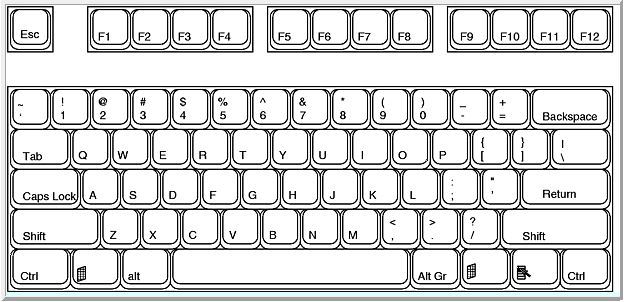
As i find that using this with the keyboard is really easy and fast. So you should remember some keyboard shortcuts. It supports all the previous shortcuts used in older version of windows. But there are many new added in this version. See the new keyboard shortcuts added in this version of the windows. And use all older windows shortcuts.
| New hotkeys (Shortcuts) added in Windows 8 Consumer Preview |
|---|
| Key combination | Function |
|---|
| Windows-Space | Switch input language and keyboard layout. |
| Windows-O | Lock device orientation. |
| Windows-, | Temporarily peek at the desktop. |
| Windows-V | Cycle through toasts. |
| Windows-Shift-V | Cycle through toasts in reverse order. |
| Windows-Enter | Launch Narrator. |
| Windows-PgUp | Move the Start Screen or a Metro-style application to the monitor on the left. |
| Windows-PgDown | Move the Start Screen or a Metro-style application to the monitor on the right. |
| Windows-Shift-. | Move the gutter to the left (snap an application). |
| Windows-. | Move the gutter to the right (snap an application). |
| Windows-C | Open the Charms bar. |
| Windows-I | Open the Settings charm. |
| Windows-K | Open the Connect charm. |
| Windows-H | Open the Share charm. |
| Windows-Q | Open the Search pane. |
| Windows-W | Open the Settings Search app. |
| Windows-F | Open the File Search app. |
| Windows-Tab | Cycle through apps. |
| Windows-Shift-Tab | Cycle through apps in reverse order. |
| Windows-Ctrl-Tab | Cycle through apps and snap them as they cycle. |
| Windows-Z | Open the App Bar. |
| Windows-/ | Initiate input method editor (IME) reconversion. |
| Windows-J | Swap foreground between the snapped and filled apps. |
The latest testing release Windows 8 Consumer Preview is the preview of the Windows 8 which will launch in October 2012. The Windows 8 do not have start menu as we see in all other older versions of Windows. So most of the users find it difficult to run the desired program. But there is a trick by which you get the Windows 7 like start button to your Windows 8 operating system.
There is a nice tool AskVG which adds a start menu at the taskbar. This tool is initially developed to give Windows XP a Windows Vista/7 style Start Menu.
After the installation of the program, you will get a start button. But there is a problem because it overlaps with the taskbar icons. see in the snap. You can see the overlapping icon of start and internet explorer.
This tool creates a new toolbar on the task bar.
But this software tries to install some third party tools while installation. So pay attention and skip installation of those third party tools by unchecking options.
Some users will find it difficult to find an option to shutdown the Windows 8. There is no start menu in the windows 8 and there is no direct option for shutdown the system. If you are also in those users who are still searching for the button to shut down the windows 8, read below.
Take you mouse to the lower right corner of the screen. Here you will see a pop-up screen displaying some icons. Click on settings icon and then click on power icon. Here you will see three options: Sleep, Restart, and Shut down. Now click on shut down to turn off your windows.
If you want to reach there quickly, you can use keyboard shortcuts windows key+ i. This will take you to quickly at the settings screen. Now shutdown from here by clicking on power icon.
You can also shutdown windows 8 by the traditional keyboard shortcut Alt+F4. That will bring up a dedicated Shut down screen where you can choose to put the PC to sleep, restart, or shut down completely.
laptop users can also customize their power options to set shutdown to the power button. After that, they can shutdown the windows just by pressing power button. All you have to do is put your mouse at the bottom-left corner of the screen until the “Charms” menu appears. Click on Settings, and a bar will appear on the right side of the screen. Select Power, then Shut Down.
Now you have several ways to shut down the windows. Choose which is easier for you.
:)